
![Even the RTX 5090 Struggles with 4K at Maximum Settings! An In-Depth Review of the PC Version of “Gears of War: E-Day”—From the Stunning Shading of RTX Mega Geometry to Concerning Lag [Performance Test]](/imgs/p/JIxo87wJh5Y_xgjF1boGNUXVYNtu3dzb2tnY/25682.jpg)
![Even the RTX 5090 Struggles with 4K at Maximum Settings! An In-Depth Review of the PC Version of “Gears of War: E-Day”—From the Stunning Shading of RTX Mega Geometry to Concerning Lag [Performance Test]](/imgs/p/_zOaUlRqojxBw0ee6C2849PQ-N8W3dzb2tnY/25682.jpg)
![Even the RTX 5090 Struggles with 4K at Maximum Settings! An In-Depth Review of the PC Version of “Gears of War: E-Day”—From the Stunning Shading of RTX Mega Geometry to Concerning Lag [Performance Test]](/imgs/p/_zOaUlRqojxBw0ee6C2849PQ-N8W3dzb2tnY/25683.png)
![Even the RTX 5090 Struggles with 4K at Maximum Settings! An In-Depth Review of the PC Version of “Gears of War: E-Day”—From the Stunning Shading of RTX Mega Geometry to Concerning Lag [Performance Test]](/imgs/p/_zOaUlRqojxBw0ee6C2849PQ-N8W3dzb2tnY/25684.png)
![Even the RTX 5090 Struggles with 4K at Maximum Settings! An In-Depth Review of the PC Version of “Gears of War: E-Day”—From the Stunning Shading of RTX Mega Geometry to Concerning Lag [Performance Test]](/imgs/p/_zOaUlRqojxBw0ee6C2849PQ-N8W3dzb2tnY/25685.png)
![Even the RTX 5090 Struggles with 4K at Maximum Settings! An In-Depth Review of the PC Version of “Gears of War: E-Day”—From the Stunning Shading of RTX Mega Geometry to Concerning Lag [Performance Test]](/imgs/p/_zOaUlRqojxBw0ee6C2849PQ-N8W3dzb2tnY/25686.png)
![Even the RTX 5090 Struggles with 4K at Maximum Settings! An In-Depth Review of the PC Version of “Gears of War: E-Day”—From the Stunning Shading of RTX Mega Geometry to Concerning Lag [Performance Test]](/imgs/p/_zOaUlRqojxBw0ee6C2849PQ-N8W3dzb2tnY/25687.png)
![Even the RTX 5090 Struggles with 4K at Maximum Settings! An In-Depth Review of the PC Version of “Gears of War: E-Day”—From the Stunning Shading of RTX Mega Geometry to Concerning Lag [Performance Test]](/imgs/p/_zOaUlRqojxBw0ee6C2849PQ-N8W3dzb2tnY/25688.png)
![Even the RTX 5090 Struggles with 4K at Maximum Settings! An In-Depth Review of the PC Version of “Gears of War: E-Day”—From the Stunning Shading of RTX Mega Geometry to Concerning Lag [Performance Test]](/imgs/p/_zOaUlRqojxBw0ee6C2849PQ-N8W3dzb2tnY/25689.png)

The “Gears of War” series—a landmark third-person shooter (TPS) that originated on the Xbox 360—is celebrating its 20th anniversary since its debut.The latest installment, *Gears of War: E-Day* (hereinafter *GoW: E-Day*), takes place 14 years before the original *Gears of War*, depicting the moments just before Marcus and Dom face an unknown threat.
This title utilizes the “Unreal Engine 5.” It will be interesting to see what kind of graphics bring the battles that mark the series’ origins to life. Since we were provided with a retail-quality key, we’ll be using a PC equipped with a GeForce RTX 5090 to explore the performance of *GoW: E-Day*.
Graphics Settings with Attention to Detail
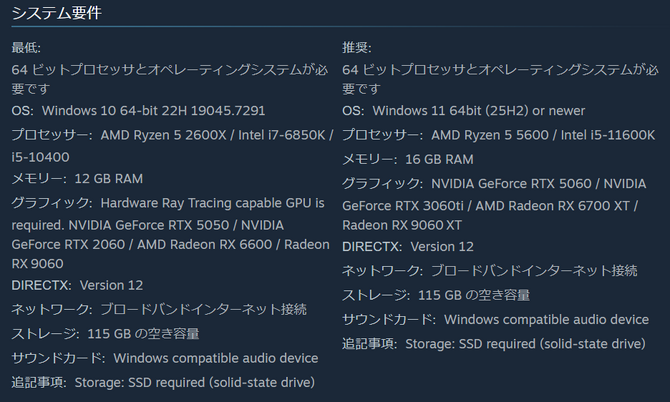
The recommended GPUs listed on the Steam store are the GeForce RTX 5060, RTX 3060 Ti, Radeon RX 6700 XT, and RX 9060 XT, with 16GB of memory.Additionally, even the minimum requirements call for a GPU capable of hardware ray tracing and an SSD. However, while the store’s requirements section does not specify target resolutions or frame rates for these GPUs, we’ll be conducting benchmarks in this article using our standard RTX 5090-equipped PC.
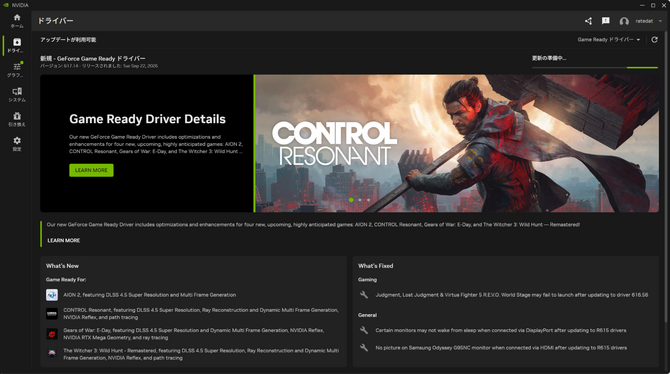
We used the GeForce Game Ready Driver 617.14 for testing, and the PC specifications used for benchmarking are as follows:
CPU: AMD Ryzen 9 9950X
Memory: Micron DDR5-5600 128GB (4 x 32GB modules) *1
Motherboard: ASUS TUF Gaming B850-PLUS WIFI
Display: ROG Strix XG32UQ (4K UHD/3840×2160/160Hz)*2
GPU: NVIDIA GeForce RTX 5090 32GB
*1 The memory is operating at a frequency lower than DDR5-5600.
*2 The display is not overclocked; it is locked at 144Hz with G-SYNC enabled.

For this round of testing, we used the built-in benchmarking feature to measure performance across a range of resolutions and settings, from 8K down to Full HD. In the comparisons below between presets and DLSS, frame generation was disabled. Please note that due to time constraints, we limited the comparison settings for some resolutions.
 |  |
For this round of testing, we ran benchmarks with Variable Rate Shading and RTX Mega Geometry set to the configurations shown in the image above. We’ll present the comparison results with these features toggled on and off later.
Variable Rate Shading is a feature that adjusts the frequency of shading calculations based on screen areas and other factors to reduce the rendering load. For the purpose of comparing settings in this test, we generally kept it turned off, but switched it on for dedicated comparisons.
Please note that the results in this article are actual measurements taken on the author’s system. Results may vary depending on your PC configuration, drivers, and in-game conditions, so please use this as a reference for adjusting your settings.
Stable Rendering That Maintains Visual Quality Even at Lower Settings
 |  |
First, let’s see how much of a difference changing the presets makes. For the preset comparison, we used DLAA and disabled frame generation during measurement. The benchmark interface allows for fine-tuning of graphics settings, enabling fast and flexible testing—a feature we greatly appreciate—and this time, we were able to analyze the details quite thoroughly.


As expected, the results for 8K are challenging, but even at the “Comic” setting for 4K/DLAA, the average frame rate is 42.9 fps, placing a significant load on the RTX 5090.Lowering the setting from “Comic” to “Ultra” improved the average fps by approximately 37.2%, and switching to “High” improved it by about 54.4%.On the other hand, the change from “High” to “Medium” was minor—from 66.3 fps to 69.2 fps—and the average 1% Low value was 44.0 fps for both. When aggregating the entire log interval for this test, the difference was most pronounced when lowering the settings from “Comical.”

GPU utilization is summarized later, but in this RTX 5090 setup, the “High” settings at 1440p exceeded an average of 60 fps even with DLAA enabled.

Even when lowering the DLSS quality setting, the increase in frame rate was limited under these conditions. Since the difference in image quality is minimal, there seems to be little need to significantly lower the quality setting—even when prioritizing frame rate. On the other hand, a certain degree of improvement was observed in PC latency, as discussed later.

Additionally, when lowering the resolution from 1440p to Full HD while maintaining “High” settings, GPU utilization dropped from 49.2% to 39.8%, but the increase in average fps was limited to about 0.3%.Under these relatively light rendering conditions, lowering the resolution did free up some GPU capacity, but this did not directly translate into an improvement in frame rate.

 |  |
Let’s also examine the differences caused by variable rate shading and RTX Mega Geometry.

We compared the performance by toggling RTX Mega Geometry and variable rate shading on and off. With variable rate shading turned off, enabling Mega Geometry caused the average fps to drop from 44.80 fps to 42.93 fps.Even with variable rate shading enabled, the average frame rate dropped from 46.90 fps to 43.54 fps. While variable rate shading did improve the average frame rate, the increase when Mega Geometry was enabled was relatively small.
Before explaining RTX Mega Geometry, let’s briefly touch on Nanite, which is also used in this game. This is an Unreal Engine technology that automatically adjusts the level of detail required based on the viewpoint and the object’s size on screen, enabling efficient rendering of high-resolution 3D models.Its key feature is that it doesn’t simply use high-resolution textures; instead, it handles the geometry of objects themselves in greater detail.
According to NVIDIA’s documentation, when enabled, Nanite’s full-quality geometry is also used for ray tracing.Not only are shadows cast by small stones and debris rendered more accurately, but the fine details of objects reflected in surfaces are also faithfully reproduced. It’s easiest to understand Nanite as a technology that extends the detailed geometry it enables to shadows and reflections as well.
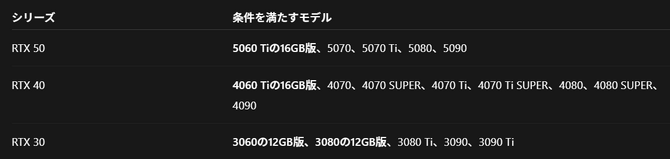
However, enabling RTX Mega Geometry in this game requires a GeForce RTX GPU with at least 12GB of VRAM. While the list includes the 12GB models of the RTX 3060 and RTX 3080, meeting the system requirements does not guarantee sufficient performance.
How Much Do Shadows Change with RTX Mega Geometry?

To put it simply, the difference is on a whole new level.
You can see that detailed shadows are rendered not only on the spokes of the bicycle but also on the roadside plants and even the fallen leaves at the top of the screen.
When I compared ray tracing in a previous benchmark article, I couldn’t help but marvel at the technological advancements, and when I ran the comparisons for this Mega Geometry feature, I found myself clapping in awe. If you have the hardware to support it, it’s definitely worth trying out.


I’d like to say, “Let’s take a look at the differences between the presets here…” but in the scenes I captured this time, even when lined up side by side, the differences are barely noticeable. While lowering the preset setting preserves the overall landscape, the differences are limited to shading and road surface details—and honestly, it’s frustrating to compare them when the differences are this subtle.
Perhaps because of this, PC latency is a bit of a concern.
 | 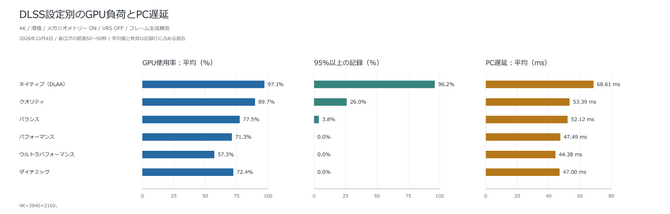 | |
As a TPS, responsiveness to controls is a key concern. From here, let’s look at the PC latency for each setting, recorded with NVIDIA Reflex set to “On + Boost.”
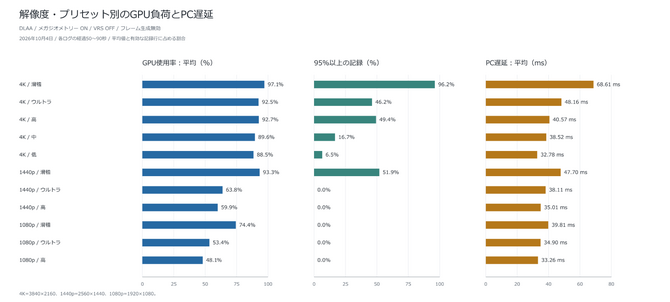
The PC latency discussed here refers to the delay that occurs between when the PC processes an input and when the rendered frame is sent to the display.This measurement differs from total input latency, which includes mouse and monitor latency. Latency is measured in milliseconds (ms). For this analysis, I averaged the PC latency recorded between 50 and 90 seconds into each log.
First, looking at the 4K/DLAA results, the average PC latency—which was 68.6 ms on the highest “Comic” setting—decreased to 48.2 ms on “Ultra” and 40.6 ms on “High.” On “Low,” it was 32.8 ms, representing an improvement of approximately 52% compared to the highest setting.It’s safe to say that lowering the graphics settings has a positive effect not only on frame rate but also on input responsiveness.
However, lowering the settings does not result in a continuous improvement. The difference between “High” and “Medium” was approximately 2 ms. Additionally, when lowering the resolution while keeping the “High” setting, the latency was 35.0 ms at 1440p and 33.3 ms at 1080p, compared to 40.6 ms at 4K.Reducing the resolution from 1440p to 1080p resulted in a reduction of only about 1.7 ms, and in these measurements, approximately 33 ms was the lowest level recorded.
Regarding DLSS, the evaluation differs slightly from the previous FPS comparison.PC latency at the “Comic” setting in 4K was 53.4 ms in Quality mode, 47.5 ms in Performance mode, and 44.4 ms in Ultra Performance mode. This represents a reduction of up to approximately 35% compared to DLAA, confirming that it improves responsiveness even when the increase in fps is limited.
On the other hand, at 1080p with the “High” setting, PC latency was 33.3 ms, even though GPU utilization dropped to an average of about 48%. We observe a tendency for improvements in PC latency to become smaller even when the GPU has more headroom. However, based on these results alone, we cannot conclusively determine that the CPU or specific rendering processes are the cause.
To summarize these results: while latency can be reduced by adjusting graphics settings or DLSS, even in an RTX 5090 environment with Reflex set to “On + Boost,” PC latency remained at approximately 33 ms under light load conditions. As a TPS that prioritizes quick aiming, these results leave us hoping for an even lower level of latency.
Weak Points Exposed by Frame Generation
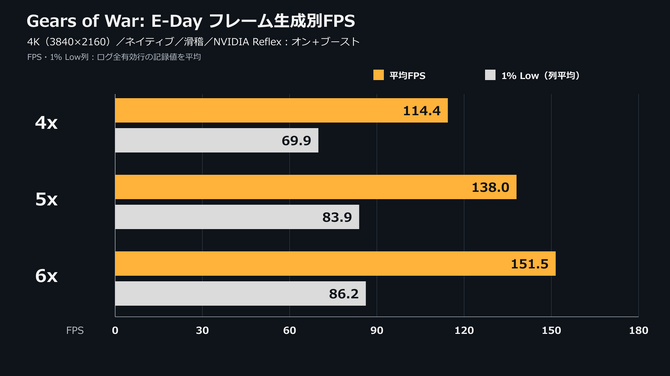 |  |
Finally, let’s look at the results with in-game frame generation enabled.
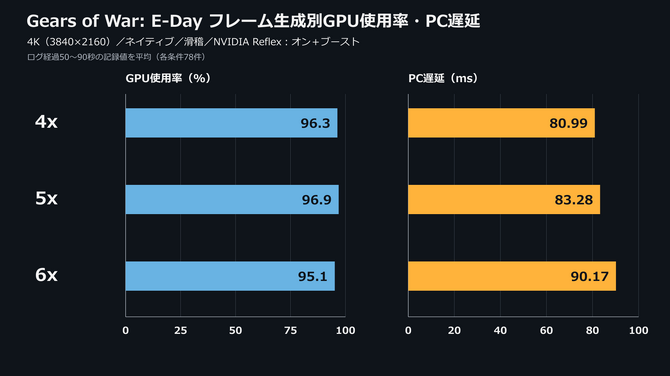
I think frame generation is a wonderful technology that appears to run smoothly, but—as has been true of all benchmark articles this year—the problem is latency.
As mentioned earlier, when using frame generation under conditions where significant latency is noticeable, even with Reflex enabled, latency reaches 90 ms at 6x, and when Reflex is disabled, it exceeds 100 ms. While there are absolutely no issues with the game’s diverse graphics settings or optimization, this particular latency remained a concern for me right up until the very end.
Stunning Battlefields and Concerning Control Responsiveness

While PC latency remained a concern throughout this test, I was impressed by how easily the game maintains the atmosphere of the battlefield even when lowering preset settings, as well as how RTX Mega Geometry brings even the finest shading details to life. Rather than aiming solely for the highest settings, the game offers a wide range of options that allow you to start with “High” or “Ultra” and find the right balance between visual quality and performance for your PC—a truly appealing feature.
Since you’re playing, you’ll want to fully immerse yourself not only in the advancing Locust but also in the atmosphere of the battlefield and the expressions of your teammates. Find the settings that work best for your PC and dive into the battle of *E-Day*.
*Gears of War: E-Day* is scheduled for release on October 7, 2026, for PC (Steam, Microsoft Store) andXBOX Series X|S. It will also be available via the “Game Pass” subscription service.

![Even the RTX 5090 Struggles with 4K at Maximum Settings! An In-Depth Review of the PC Version of “Gears of War: E-Day”—From the Stunning Shading of RTX Mega Geometry to Concerning Lag [Performance Test]](/imgs/p/_zOaUlRqojxBw0ee6C2849PQ-N8W3dzb2tnY/25690.jpg)
![Even the RTX 5090 Struggles with 4K at Maximum Settings! An In-Depth Review of the PC Version of “Gears of War: E-Day”—From the Stunning Shading of RTX Mega Geometry to Concerning Lag [Performance Test]](/imgs/p/_zOaUlRqojxBw0ee6C2849PQ-N8W3dzb2tnY/25691.jpg)
![Even the RTX 5090 Struggles with 4K at Maximum Settings! An In-Depth Review of the PC Version of “Gears of War: E-Day”—From the Stunning Shading of RTX Mega Geometry to Concerning Lag [Performance Test]](/imgs/p/_zOaUlRqojxBw0ee6C2849PQ-N8W3dzb2tnY/25692.jpg)
![Even the RTX 5090 Struggles with 4K at Maximum Settings! An In-Depth Review of the PC Version of “Gears of War: E-Day”—From the Stunning Shading of RTX Mega Geometry to Concerning Lag [Performance Test]](/imgs/p/_zOaUlRqojxBw0ee6C2849PQ-N8W3dzb2tnY/25693.png)
![Even the RTX 5090 Struggles with 4K at Maximum Settings! An In-Depth Review of the PC Version of “Gears of War: E-Day”—From the Stunning Shading of RTX Mega Geometry to Concerning Latency [Performance Test]](/imgs/p/_zOaUlRqojxBw0ee6C2849PQ-N8W3dzb2tnY/25694.jpg)
![Even the RTX 5090 Struggles with 4K at Maximum Settings! An In-Depth Review of the PC Version of “Gears of War: E-Day”—From the Stunning Shading of RTX Mega Geometry to Concerning Lag [Performance Test]](/imgs/p/_zOaUlRqojxBw0ee6C2849PQ-N8W3dzb2tnY/25695.jpg)
![Even the RTX 5090 Struggles with 4K at Maximum Settings! An In-Depth Review of the PC Version of “Gears of War: E-Day”—From the Stunning Shading of RTX Mega Geometry to Concerning Lag [Performance Test]](/imgs/p/_zOaUlRqojxBw0ee6C2849PQ-N8W3dzb2tnY/25696.jpg)
![Even the RTX 5090 Struggles with 4K at Maximum Settings! An In-Depth Review of the PC Version of “Gears of War: E-Day”—From the Stunning Shading of RTX Mega Geometry to Concerning Lag [Performance Test]](/imgs/p/_zOaUlRqojxBw0ee6C2849PQ-N8W3dzb2tnY/25697.jpg)
![Even the RTX 5090 Struggles with 4K at Maximum Settings! An In-Depth Review of the PC Version of “Gears of War: E-Day”—From the Stunning Shading of RTX Mega Geometry to Concerning Lag [Performance Test]](/imgs/p/_zOaUlRqojxBw0ee6C2849PQ-N8W3dzb2tnY/25698.jpg)
![Even the RTX 5090 Struggles with 4K at Maximum Settings! An In-Depth Review of the PC Version of “Gears of War: E-Day”—From the Stunning Shading of RTX Mega Geometry to Concerning Lag [Performance Test]](/imgs/p/_zOaUlRqojxBw0ee6C2849PQ-N8W3dzb2tnY/25699.jpg)
![Even the RTX 5090 Struggles with 4K at Maximum Settings! An In-Depth Review of the PC Version of “Gears of War: E-Day”—From the Stunning Shading of RTX Mega Geometry to Concerning Lag [Performance Test]](/imgs/p/_zOaUlRqojxBw0ee6C2849PQ-N8W3dzb2tnY/25700.jpg)
![Even the RTX 5090 Struggles with 4K at Maximum Settings! An In-Depth Review of the PC Version of “Gears of War: E-Day”—From the Stunning Shading of RTX Mega Geometry to Concerning Lag [Performance Test]](/imgs/p/_zOaUlRqojxBw0ee6C2849PQ-N8W3dzb2tnY/25701.jpg)
![Even the RTX 5090 Struggles with 4K at Maximum Settings! An In-Depth Review of the PC Version of “Gears of War: E-Day”—From the Stunning Shading of RTX Mega Geometry to Concerning Lag [Performance Test]](/imgs/p/_zOaUlRqojxBw0ee6C2849PQ-N8W3dzb2tnY/25702.jpg)
![Even the RTX 5090 Struggles with 4K at Maximum Settings! An In-Depth Review of the PC Version of “Gears of War: E-Day”—From the Stunning Shading of RTX Mega Geometry to Concerning Lag [Performance Test]](/imgs/p/_zOaUlRqojxBw0ee6C2849PQ-N8W3dzb2tnY/25703.jpg)
![Even the RTX 5090 Struggles with 4K at Maximum Settings! An In-Depth Review of the PC Version of “Gears of War: E-Day”—From the Stunning Shading of RTX Mega Geometry to Concerning Lag [Performance Test]](/imgs/p/_zOaUlRqojxBw0ee6C2849PQ-N8W3dzb2tnY/25704.jpg)
![Even the RTX 5090 Struggles with 4K at Maximum Settings! An In-Depth Review of the PC Version of “Gears of War: E-Day”—From the Stunning Shading of RTX Mega Geometry to Concerning Lag [Performance Test]](/imgs/p/_zOaUlRqojxBw0ee6C2849PQ-N8W3dzb2tnY/25705.jpg)
![Even the RTX 5090 Struggles with 4K at Maximum Settings! An In-Depth Review of the PC Version of “Gears of War: E-Day”—From the Stunning Shading of RTX Mega Geometry to Concerning Lag [Performance Test]](/imgs/p/_zOaUlRqojxBw0ee6C2849PQ-N8W3dzb2tnY/25706.jpg)
![Even the RTX 5090 Struggles with 4K at Maximum Settings! An In-Depth Review of the PC Version of “Gears of War: E-Day”—From the Stunning Shading of RTX Mega Geometry to Concerning Lag [Performance Test]](/imgs/p/_zOaUlRqojxBw0ee6C2849PQ-N8W3dzb2tnY/25707.jpg)